
CACCHT Explorer · Guide
Asking Claude
You can ask Claude, in your own words, for a search: find all cases of >LHJM/ in the BHSA, or clauses where the object comes before the verb. Claude writes a search template, tries it, and sends it to the Explorer. You decide whether it runs. This uses your own Claude subscription, in Claude Desktop or Claude Code.
What Claude does, and what it doesn't
- Claude writes the search template; the Explorer shows it with Claude's explanation, so you can read and change it.
- Before sending it, Claude may check the template and try it on a few results, to see that it finds what you asked for.
- Nothing runs by itself: you click Run.
- The results always come from the Explorer's own search, never from Claude's text, so they are the same as for a search you had typed yourself.
- The search keeps where it came from (Proposed by Claude, … for: …): in its link, in a saved workspace, and when you cite it.
Claude can be wrong. Check the template, and look at a few results before you trust a count.
Setting it up
Always first: start CACCHT Explorer and keep it running. Claude talks to the running program.
In Claude Desktop
- Download
CACCHT-Explorer.mcpbfrom the release (under Assets, next to the program; see Getting started). - Install it, in one of these ways:
- double-click the downloaded file: Claude Desktop opens it and offers to install it; click Install;
- or, in Claude Desktop, go to Settings → Extensions, and choose Install Extension… (under Advanced settings), then the file;
- or drag the file into the Settings → Extensions window.
- Check that CACCHT Explorer is switched on under Settings → Extensions.
- Start a new chat. The tools menu (the button below the message box) now lists CACCHT Explorer.
You need a recent Claude Desktop. The extension needs nothing else: no Python and no Node.js of your own. If your Claude Desktop names its menus differently, look under Extensions for the button that installs one.
Without the extension (if installing it doesn't work): in Claude Desktop, Settings → Developer → Edit Config opens claude_desktop_config.json. Add the program, with its path on your computer, and restart Claude Desktop:
{
  "mcpServers": {
    "context-fabric": {
      "command": "C:\\path\\to\\cfabric-browser\\cfabric-browser.exe",
      "args": ["mcp"]
    }
  }
}
On a Mac the command is /Applications/CACCHT Explorer.app/Contents/MacOS/cfabric-browser; on Linux, the path of cfabric-browser/cfabric-browser.
In Claude Code
In a terminal, once:
claude mcp add --transport http context-fabric http://127.0.0.1:8107/mcp
8107 is the program's usual port. If another program had taken it, the log (.cfabric/logs/cfabric-browser.log in your home folder) gives the address with the port the Explorer uses.
Asking
Ask Claude, for instance:
- Find all cases of >LHJM/ in the BHSA.
- All infinitives construct of HLK[.
- Clauses in Genesis where the subject comes before the verb.
The first time Claude uses a tool, it asks your permission. Claude reads a guide to searching the BHSA, checks its template and tries it, and tells you it has sent a search.
In the Explorer, the search appears above the search form (in Parallel: click Search in the top bar), with your request, the template, Claude's explanation and how many results its trial found:
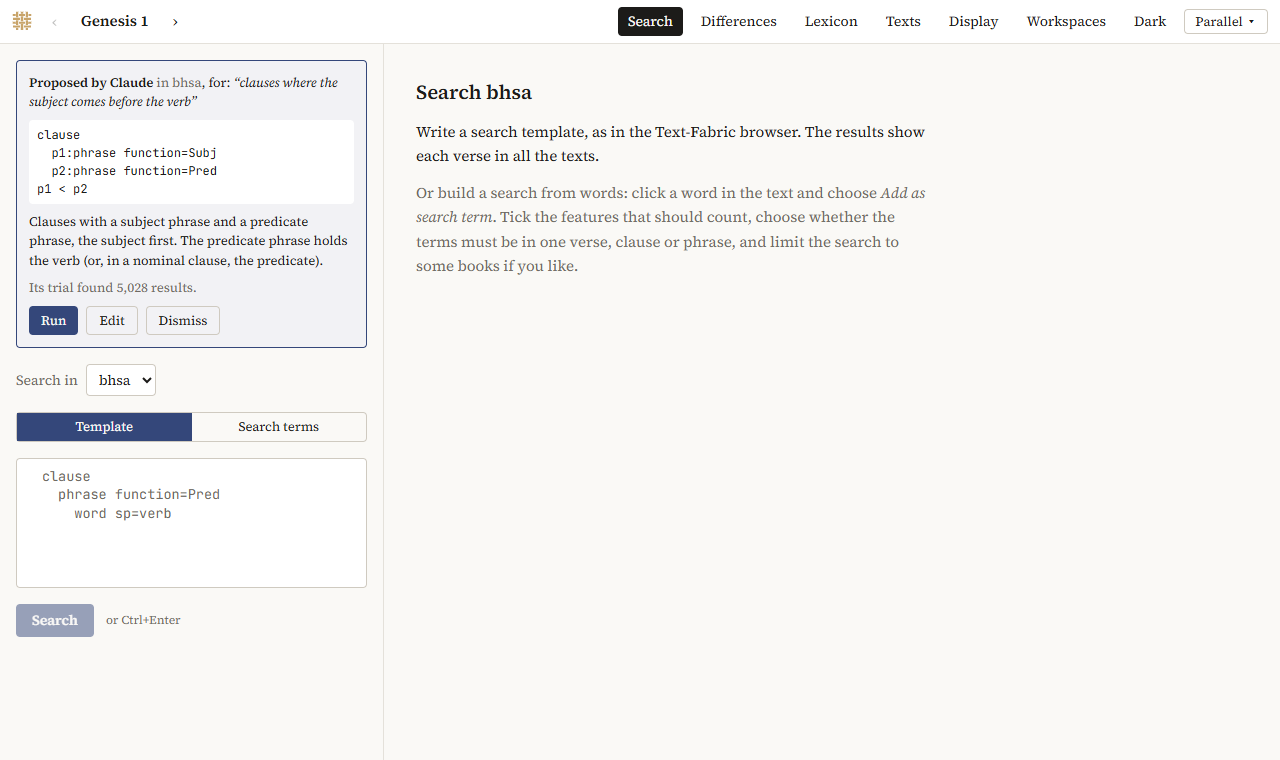
- Run runs it, as if you had typed it;
- Edit puts it in the editor, to change it first;
- Dismiss drops it.
So far Claude knows the BHSA best: its guide to searching covers the BHSA's features, with worked examples. It can search the Samaritan Pentateuch and the scrolls too, but with less help.
Privacy
What you ask goes to Anthropic, as anything you ask Claude. The texts stay on your computer, apart from the few results Claude sees when it tries a template. The Explorer answers only programs on your own computer, not other web pages or other computers.