
CACCHT Explorer · Guide
Searching
The Explorer searches with search templates, the search language of Text-Fabric. A template describes what you look for, one object per line: a word with certain features, a phrase with a certain function, a clause that contains both. You can write one yourself, have one made from words you click (Search terms), or ask Claude for one.
In Parallel, Search in the top bar opens the search, which shows each result as a verse in all the texts. Panes have a Search view, and the Concordance shows results as lines with the hit in the middle. A search goes along when you switch between them.
Templates
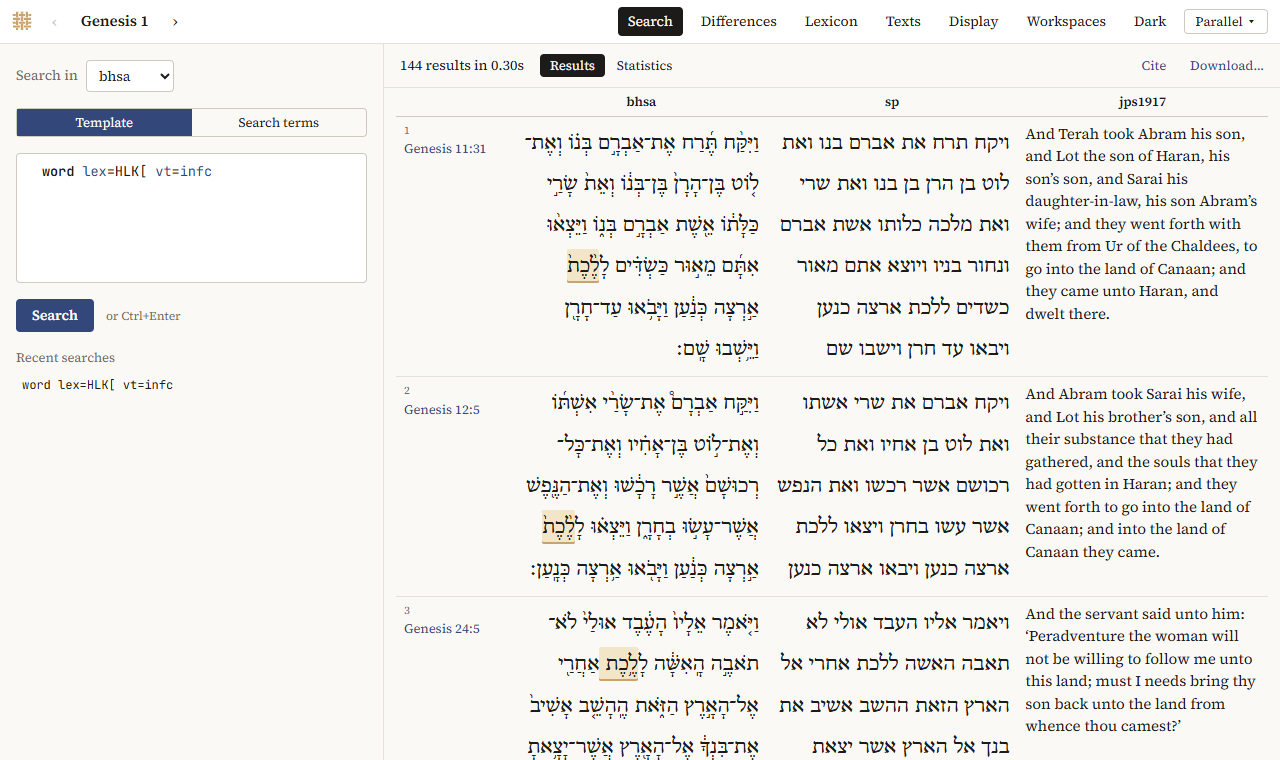
Search opens on Template. Choose the text under Search in, write the template, and click Search (or press Ctrl+Enter).
One line: words with features
A line is an object type and its features: word and then what the word must be.
| You look for | Template | In the BHSA |
|---|---|---|
| all cases of אלהים | word lex=>LHJM/ |
2,601 |
| the verb הלך in all its forms | word lex=HLK[ |
1,554 |
| הלך in the qal | word lex=HLK[ vs=qal |
1,412 |
| infinitives construct of הלך | word lex=HLK[ vt=infc |
144 |
| hiphil imperfects | word vs=hif vt=impf |
2,264 |
| nouns in the construct state | word sp=subs st=c |
36,679 |
| Aramaic words | word language=Aramaic |
6,106 |
The values are the BHSA's codes, not English words:
Lexemes are written in the ETCBC's transliteration:
>א,Bב,Gג,Dד,Hה,Wו,Zז,Xח,Vט,Jי,Kכ,Lל,Mמ,Nנ,Sס,<ע,Pפ,Yצ,Qק,Rר,Fשׂ,Cשׁ,Tת. A verb ends in[(HLK[), a noun or adjective in/(MLK/), a particle in neither (KJ), so the ending already separates the verbDBR[speak from the nounDBR/word. Homonyms that would otherwise be written the same get one or more=before the ending:BR>[create andBR>==[cut down,Hthe article andH=the interrogative he.To find how a lexeme is written, look it up in the lexicon: Find takes the Hebrew or an English gloss (create), and each lexeme in the list shows its transliteration,
=included. The hover card and the word panel show it too, as transliteration.Part of speech (
sp):subsnoun,verb,adjvadjective,nmprproper noun,preppreposition,conjconjunction,artarticle,neganegation, …Stem (
vs):qal,nif,piel,pual,hit,hif,hof, …Tense (
vt):perf,impf,wayqwayyiqtol,impv,infc,infa,ptcaactive participle,ptcppassive participle.Person, gender, number, state:
ps=p1|p2|p3,gn=m|f,nu=sg|pl|du,st=a|c.
You don't have to know them by heart. While you type, the editor offers the object types and features of the corpus, and after = the values a feature has, with how often each occurs. Hover over a feature for what it means.
| allows several values (ps=p1|p2), # excludes one (prs#absent: with a suffix), and ~ matches a pattern (nametype~topo).
Indented lines: inside
An indented line lies inside the object above it. That is how you narrow a search to a book or chapter, or ask for words inside a phrase or clause.
Wayyiqtol forms in Genesis (2,106 in the BHSA):
book book=Genesis
  word vt=wayq
אלהים in Genesis 1 (32 in the BHSA):
book book=Genesis
  chapter chapter=1
    word lex=>LHJM/
Clauses with היה as predicate (3,521 in the BHSA):
clause
  phrase function=Pred
    word lex=HJH[
Clauses where אלהים is the subject of אמר (147 in the BHSA):
clause
  phrase function=Pred
    word lex=>MR[
  phrase function=Subj
    word lex=>LHJM/
Book names in templates are the BHSA's, in Latin: Genesis, Exodus, Leviticus, Numeri, Deuteronomium, …, Psalmi, Reges_I (1 Kings). In Parallel, Books under Search terms chooses books without that.
Phrases have a function (Pred predicate, Subj subject, Objc object, Cmpl complement, Adju adjunct, Time, Loca, …) and a type (typ: VP, NP, PP, …); clauses have a type (typ: Way0, xQtX, NmCl, …), a relation (rela: Objc, Attr, …) and a domain (N narrative, Q direct speech). The word panel shows all features of a word, phrase or clause: click a word, then Lies in.
Order: before and after
Objects at the same level come in any order. To fix their order, give them names and relate them on a line of their own: < means before, <: right before.
Clauses with the subject before the predicate (5,028 in the BHSA):
clause
  p1:phrase function=Subj
  p2:phrase function=Pred
p1 < p2
An infinitive construct right after ל (4,572 in the BHSA):
phrase
  w1:word lex=L
  w2:word vt=infc
w1 <: w2
A noun followed right away by an adjective (1,579 in the BHSA):
phrase typ=NP
  w1:word sp=subs
  w2:word sp=adjv
w1 <: w2
Without, and for all
/without/ … /-/ finds objects without something inside; /where/ … /have/ … /-/ finds objects all of whose parts have something.
Verses without a verb (1,607 in the BHSA):
verse
/without/
  word sp=verb
/-/
Subjects that are only proper names (10,484 in the BHSA):
phrase function=Subj
/where/
  word
/have/
  word sp=nmpr
/-/
What is counted
A result is a combination of objects, one for each line of the template. So verse with two words under it gives a result for every pair of such words in a verse, not one per verse: verses with both אלהים and ברא gives 21 results, in 12 verses. Put what you want to count at the top, or alone.
When a template is wrong
The editor checks the template as you type and marks a line it can't use in red, and a red box under the editor says why (Unknown feature "…", for instance). Templates that find nothing usually have a value in English (sp=noun instead of subs), a lexeme without its ending (HLK instead of HLK[), or an English book name (Psalms instead of Psalmi).
Search terms
To search without writing a template, start from words in the text:
- Click a word, and in the word panel Add as search term. The search opens with the word as a term.
- Tick the features that should count, such as its lexeme and stem but not its person.
- Add more terms in the same way, if you like.
- All in one chooses whether the terms must be in one verse, clause or phrase; Books limits the search to some books.
- Click Search.
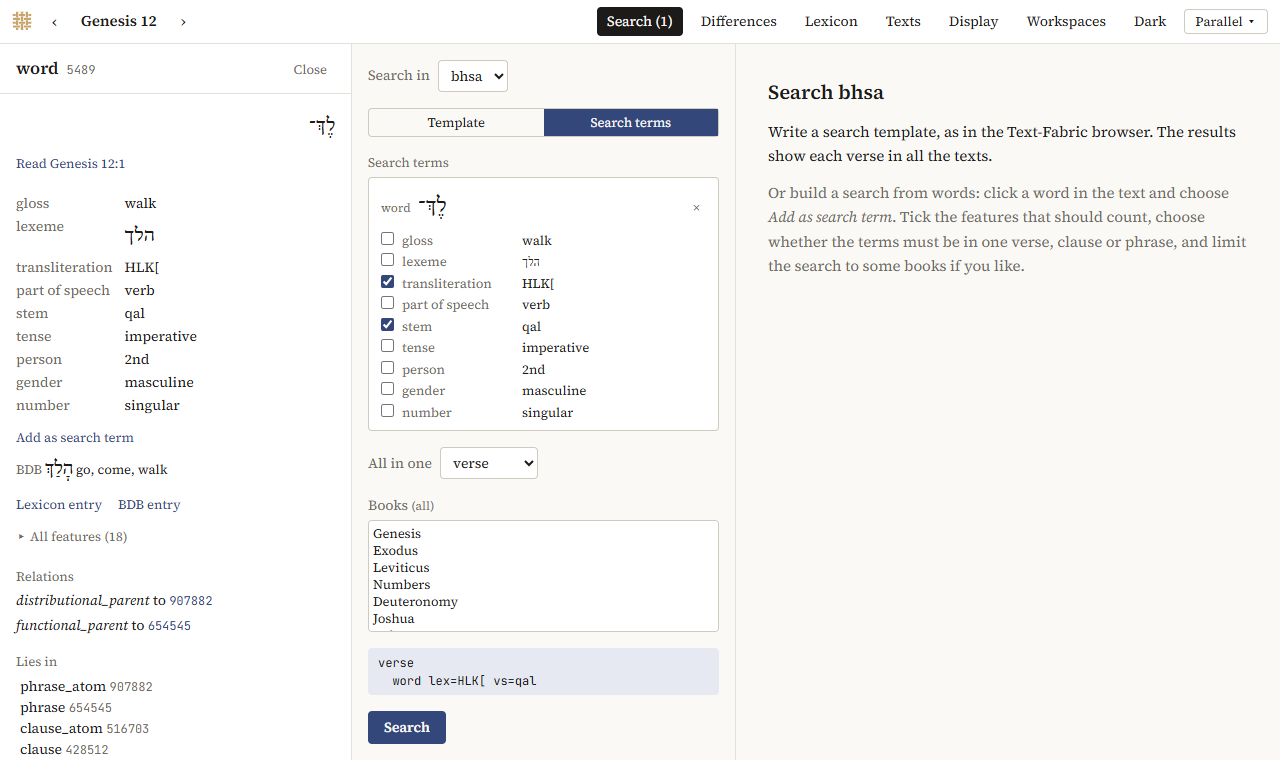
The template the terms make is shown under them. Switching to Template puts it in the editor, to change it further. Terms are kept while the program is open, not in links or workspaces.
In the Reader, the Search tab of the panel and Add as search term open the search in Parallel.
Results
While a search runs, the line above the results counts them (Searching… 812 results so far); Stop stops it. When it is done, it says how many results it found and in how long.
- In Parallel, each result is a verse in all the texts shown, with the hit marked in the searched text, 25 to a page (Previous, Next). Click the reference to read the passage.
- In Panes, the results are a list;
▸before a result shows its structure, with the template's features.
Recent searches lists your last templates per corpus (in every interface); click one to use it again.
Statistics
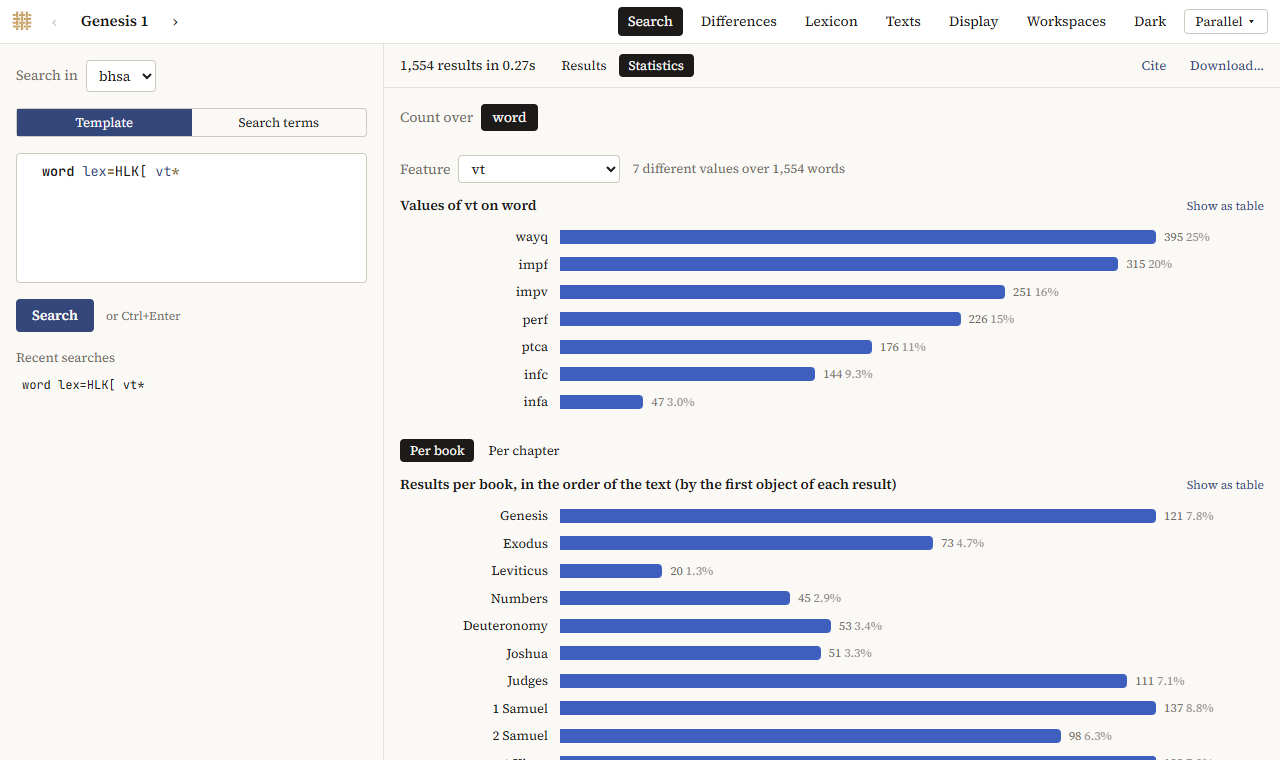
Statistics, next to Results, counts the results:
- values of a feature: Count over chooses the part of the result (the clause, the word, …), Feature the feature; the 25 most frequent values are shown, then the rest together;
- results per book (or per chapter), in the order of the text; click a bar to read that book or chapter.
Each chart has Show as table. Write a feature with * and no value in the template (word lex=HLK[ vs*) to count it without limiting the search: it is offered first.
Downloading
Download… saves the results as a spreadsheet: one row per result, with its passage and, for each line of the template, its text and its features. The features in the template are always included; tick more in the list. TSV for Excel is a file that Excel opens with the Hebrew intact; TSV is for other programs.
Cite gives a citation of the search: the corpus and its version, the template, the number of results, and the versions of the Explorer and Context-Fabric.
Limits
- A search stops after 60 seconds: Stopped after 60s with … results. Narrow the template. Most searches take less than a second.
- A search stops at 500,000 results (First … results (stopped at the limit)).
- Two searches run at a time; another waits (Waiting for a free search worker…).
- The program keeps the last 100 searches. An older link runs its search again.
With cfabric-browser on the command line, --timeout, --max-results and --workers change these limits.